NewNow on the Mac App Store→

100% FREEVersion 2.9.7Windows + macOS

Claude Usage Monitor – free usage widget for Windows & macOS Never hit your Claude limit by surprise.

A tiny always-on-top widget that shows your Claude usage live – the 5-hour session, the weekly limit and your pace. Even what your phone uses up. For Windows and macOS.

Free. Forever. Not a demo. Not a trial. Nothing locked.

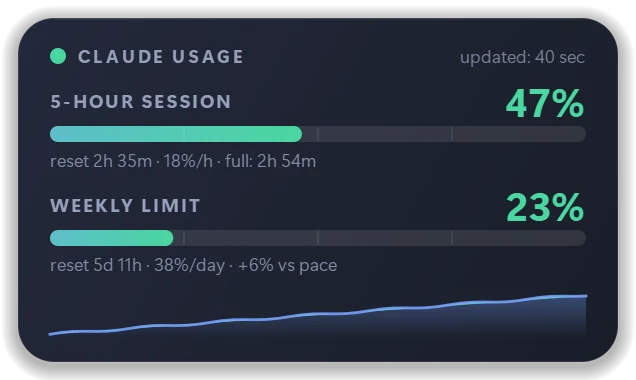
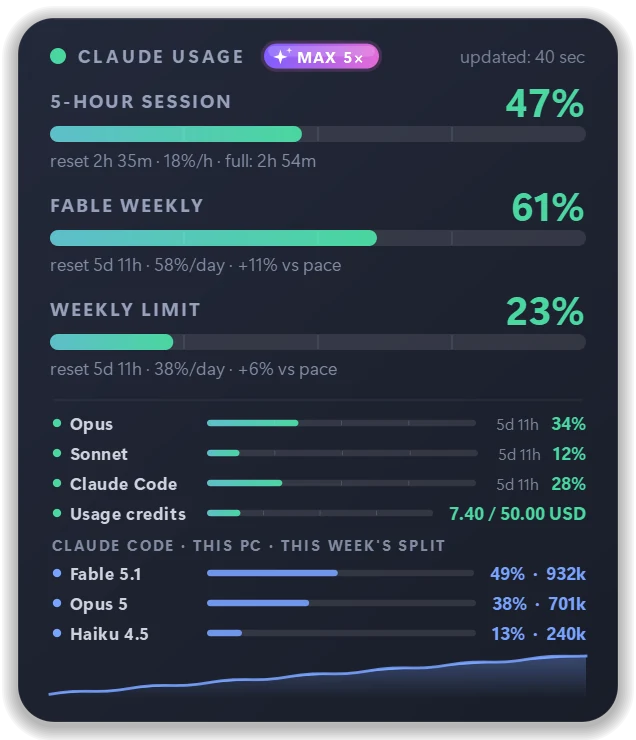
Claude Usage Monitor widget showing the 5-hour session at 47%, a per-model weekly limit at 61% and the weekly limit at 23%

Real screenshots of the app, with demo numbers.

News ·

Claude Usage Monitor is now on the Mac App Store

Since 2 November 2026 the macOS version is available from Apple's Mac App Store as “Usage Monitor for Claude AI” – checked and signed by Apple, installed with one click, updated by the Store. It is the same free, open-source app: the 5-hour session, the weekly limit and your pace, right in the menu bar.

Windows users get the same from the Microsoft Store. One app, two stores, zero cost – and the source code stays open on GitHub.

  • macOS 13 or newer
  • Free, no in-app purchases
  • 34 languages
  • About 1 MB

Thank you to everyone who tested the Mac version and sent feedback – this release is yours too. Found something? Tell us.

Free foreverFull version. No paid tier exists.
PrivateNo telemetry, no ads, no cookies.
Updates itselfVerified by SHA-256, one click.

What makes it more than a log reader

Your phone eats your limit too. Now you see it – on your desktop.

Many usage trackers read log files on your computer, so they only know what that one computer used. Claude Usage Monitor can ask Anthropic's server instead – and shows the real, account-wide number: everything you use in the phone app, in the browser, on another computer and in Claude Code counts, and you see it all in one place, on your desktop.

  • Claude app on your phone
  • claude.ai in the browser
  • Your other computer
  • Claude Code & Claude Desktop
One Claude Usage Monitor widget showing the combined usage of every device
One real number for your whole account – always in view.

Tools that only read local logs

  • What you use on your phone – invisible
  • What you use in the browser – invisible
  • Your other computers – invisible
  • Claude Code on this one computer
  • Reset times are guessed

Claude Usage Monitor with the claude.ai source

  • Phone, browser, every computer – all counted
  • Claude Code and Claude Desktop included
  • The same numbers Claude itself shows under Settings → Usage
  • Exact reset times from Anthropic's server
  • Still works without sign-in, from the local log

How: choose the “claude.ai (all devices)” data source and sign in once in your own browser – the same sign-in Claude Code uses; the app never sees your password. Without sign-in the widget reads Claude Desktop's local log, which covers this computer only.

+1 Extra – and also free

It even shows your backups. What is knowledge worth if it can be destroyed?

Every usage tracker stops at the numbers. Claude Usage Monitor goes one step further: it also shows whether your Claude-related backups are fresh – your skills, CLAUDE.md rules, project memory, MCP settings, agent conversation logs and Obsidian notes. They usually live on one single disk. One broken drive, one stolen laptop, one wrong delete – and months of work are gone. Three small lamps on the panel tell you, every minute of the day, that it can't happen to you.

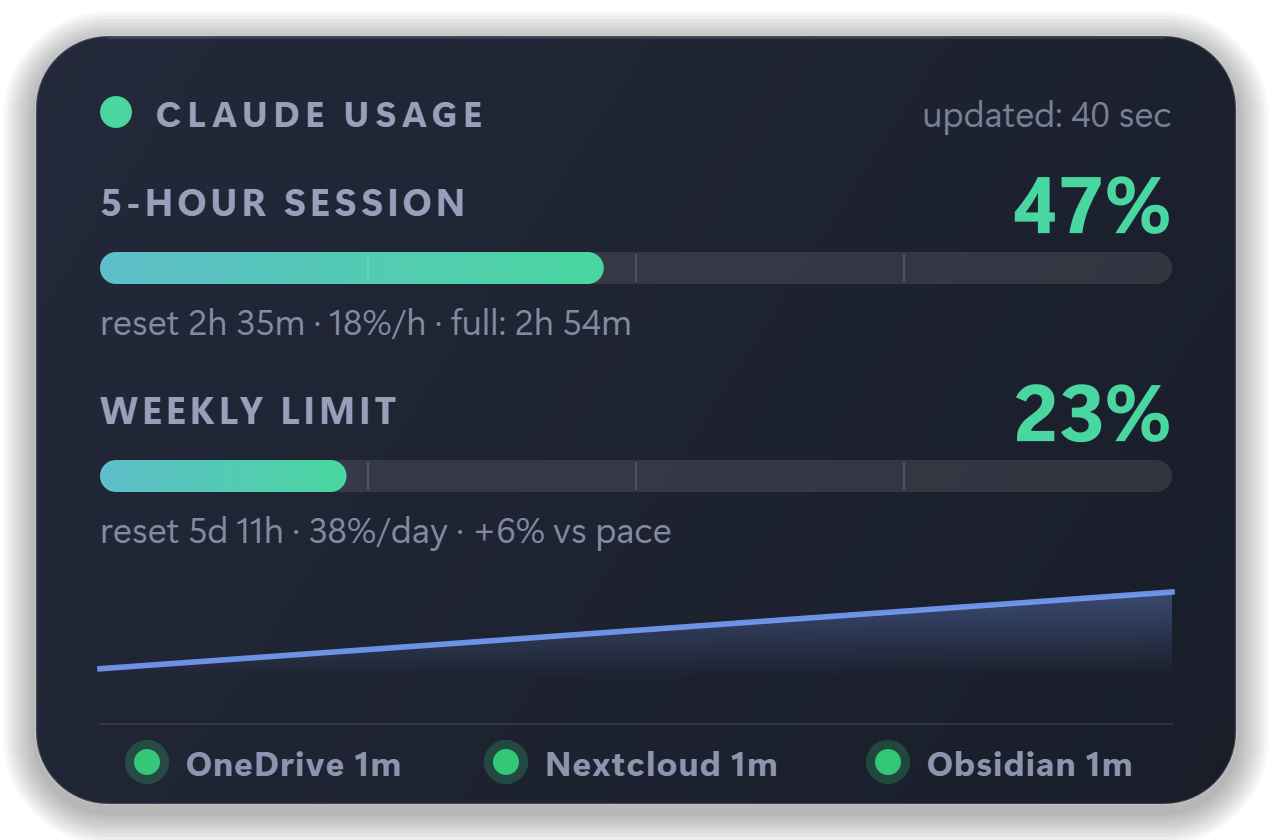
Claude Usage Monitor panel with three green backup lamps: OneDrive, Nextcloud and Obsidian, each backed up one minute ago

Three lamps. One look. You know.

  • Green – the last successful backup is at most 24 hours old.
  • Yellow – it is 24 to 48 hours old. Time to look.
  • Red – older than 48 hours, or there is no backup at all.
  • Red ring – the latest run failed or did not finish, even if an older backup still keeps the lamp green.

The lamps are OneDrive (first copy), Nextcloud (second, independent cloud – any cloud rclone supports works) and Obsidian (dated snapshot of your vault). Only a run that really finished counts: a failed, interrupted or test run never turns a lamp green. The hours are adjustable. Click any lamp for the details.

Other usage trackers

  • Show the numbers – and nothing about your data
  • Can't tell you whether your skills and notes are safe
  • A broken backup is noticed when you need it – too late
  • No help setting a backup up

Claude Usage Monitor + the free Backup Kit

  • Lamps for OneDrive, a second cloud and your Obsidian vault
  • A failed or unfinished run is flagged the moment it happens
  • What is backed up, where, how many files, how big
  • The scheduled tasks and the log – one click away
  • A free kit that sets up the backup in 10 minutes
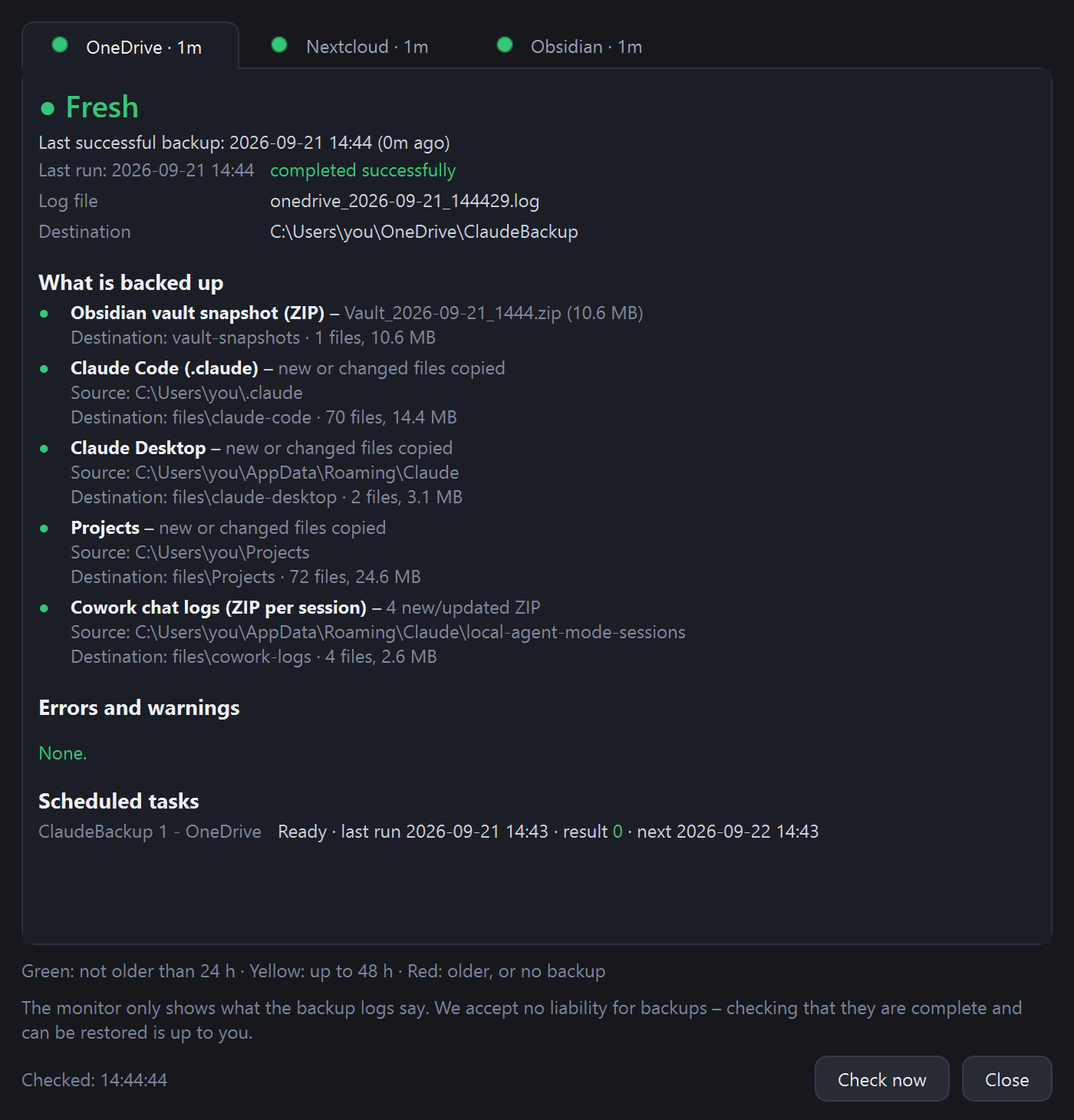
Claude Usage Monitor backup details window: status Fresh, the backed-up Obsidian vault snapshot, Claude Code, Claude Desktop, an extra folder and the agent logs with file counts and sizes, no errors, and the scheduled task

Click a lamp – this is what you see

  • Status – Fresh, Getting old, Outdated or No backup found, with the time of the last successful backup and of the last run.
  • What is backed up – every item with its source folder, its destination, the number of files and the size: the Obsidian vault snapshot, Claude Code, Claude Desktop, your extra folders and the agent logs.
  • Contents – the newest vault snapshot, how many snapshots are kept, the notes you edited most recently, and how many notes changed since the last snapshot.
  • Uploaded – on the Nextcloud tab: new and replaced files in this run, grouped by folder, and how much space is left in your cloud.
  • Errors and warnings – straight from the log, in plain words.
  • Scheduled tasks – state, last result and next run of the Windows tasks that make the backup.
  • Log – the last lines, and the log file one click away.

The monitor only reads – it never changes, moves or uploads a file. It re-checks every 5 minutes, or at once with “Check now”. A snapshot that exists only online in OneDrive is not downloaded just to list it.

FREE The honest part: the monitor watches, the kit backs up.

Claude Usage Monitor doesn't copy your files – it shows you whether the copying worked. The copying is done by the Claude Backup Kit: a handful of short PowerShell scripts you can read line by line. It backs up your Claude work every day to OneDrive and to a second, independent cloud, and writes the log the lamps read. No account, no subscription, nothing sent to us.

Windows 10/11 · PowerShell · MIT licence · ZIP 24 KB

Download the Backup Kit – free Read every script on GitHub

By downloading you accept the Terms of use: the app and the Backup Kit are free and provided “as is”, without warranty, at your own risk.

Help: set up a backup the monitor can show

Open only what you need. Every step is here – what to use, what to set, what to click. The kit is a starting point you can change – please read the disclaimer above.

Set it up in 10 minutes – step by step
  1. What you need. Windows 10 or 11, OneDrive signed in, Claude Usage Monitor installed. For the second copy: a Nextcloud account – or any other cloud rclone supports (Google Drive, Dropbox, S3, pCloud, SFTP…). No second cloud? Step 2 is optional.
  2. Create an app password (only for the second cloud). In Nextcloud: your avatar → Personal settings → Security → Devices & sessions → app name rclone-backup → Create new app password. Copy it – it is shown only once. It is not your account password, and you can revoke it at any time.
  3. Download and unpack the Backup Kit into a permanent folder, for example C:\Tools\ClaudeBackup.
  4. Edit config.psd1 in Notepad: VaultPath = your Obsidian vault (empty = no Obsidian), ExtraFolders = anything else to back up, NextcloudRemote and NextcloudBasePath = the second cloud (empty = skip it), DailyTime = when to run. Everything else can stay as it is.
  5. Run the installer as administrator: Win+X → Terminal (Admin), then Set-ExecutionPolicy -Scope CurrentUser RemoteSigned, cd C:\Tools\ClaudeBackup, Unblock-File *.ps1, .\Install-BackupKit.ps1. It installs rclone if needed, asks for the cloud address, user name and app password (typed hidden), creates the two scheduled tasks, tells the monitor where to look and makes a first run.
  6. First real upload:.\Backup-Step2-Cloud.ps1 – the installer only made a test run of step 2.
  7. Check it:.\Test-BackupKit.ps1 – every line should say [OK]. In Claude Usage Monitor: right-click the panel → Backup status bar. The three lamps turn green within 5 minutes, or at once with Backups… → Check now.
What gets backed up – and what never does
  • Claude Code (%USERPROFILE%\.claude) – skills, settings, CLAUDE.md, project memory, plugins.
  • Claude Desktop (%APPDATA%\Claude) – settings and MCP servers.
  • Agent conversation logs – one ZIP per session.
  • Obsidian vault – a dated ZIP snapshot at every run, kept for 30 days.
  • Your extra folders – whatever you list in config.psd1.
  • Never: the Claude Code sign-in token (.credentials.json), Claude Desktop's cookies, caches and the large, re-downloadable VM images.
Settings → Backups in the app, field by field
Show backup status bar on the panelSwitches the three lamps on or off. Also in the right-click menu: Backup status bar.
LampsWhich lamps to show: OneDrive, Nextcloud, Obsidian. No Obsidian vault? Untick it.
Label next to the lampName and age · Name only · Lamps only.
Green up to / Yellow up toThe age limits in hours – 24 and 48 by default. A weekly backup? Set 170 and 340.
Backup folderThe folder step 1 writes into, e.g. OneDrive\ClaudeBackup. Leave it on automatic – the installer has already told the monitor.
Backup script configThe kit's config.psd1. The monitor reads the vault path and the cloud target from it – never a password.
Scheduled task filterClaudeBackup* – which Windows tasks the details window lists.
Details window showsTick what you want to see: what is backed up, contents, errors and warnings, scheduled tasks, log.

The installer writes %APPDATA%\ClaudeUsageMonitor\backup_profile.json – folder paths only, no password, no token. Whatever you set on the Backups tab wins over this file.

Security – how the kit protects your data
  • No password in any file of the kit. The app password is typed hidden and stored only in rclone's own configuration, obscured. Revoke it in Nextcloud whenever you like.
  • The sign-in token is never copied. Nor are Claude Desktop's cookies.
  • No mirroring. A file you delete on your computer stays in both backups – mirroring would faithfully copy a mistake too.
  • Dated vault snapshots, so a later bad copy can never overwrite an older good state.
  • Two independent providers. If one fails or locks you out, the other still has everything.
  • Good to know: Claude Desktop's config and .claude\settings.json may hold API keys of MCP servers. They are backed up – you need them to restore – into your own OneDrive and your own cloud. Protect both accounts with two-step sign-in.
Restore – when you need it
An older version of a noteonedrive.com → right-click the file → Version history.
A deleted fileOneDrive Recycle bin (30 days) or Nextcloud Deleted files.
The whole vault from a given dayUnpack vault-snapshots\Vault_…zip into an empty folder and open it in Obsidian: Open folder as vault.
Claude Code skills and settingsCopy files\claude-code back to %USERPROFILE%\.claude, then sign in to Claude Code again.
Claude Desktop settingsClose Claude Desktop and copy files\claude-desktop back to %APPDATA%\Claude.
Already have your own backup? What the monitor needs
  • A log per run in the logs subfolder of your backup folder, named onedrive_YYYY-MM-DD_HHMMSS.log and nextcloud_…log, every line starting with the date and time.
  • A clear ending: a successful run ends with a line containing KESZ, a failed one with HIBAVAL ZARULT. The kit's Common.ps1 documents every word the monitor understands.
  • Where to look: set the Backup folder on the Backups tab. Different folder or file names can be set in backup_profile.json – the kit's README shows how.
  • Mac: the lamps read the same logs on macOS too; the kit itself and the scheduled-task list are for Windows.

What is Claude Usage Monitor?

Claude Usage Monitor is a free, open-source desktop widget for Windows 10/11 and macOS that shows your Claude subscription's usage limits in real time – the five-hour session, the weekly limit and the per-model weekly limit, each with the time left until it resets. It stays on top of your other windows, so you can check your Claude usage without opening Settings → Usage and without a terminal.

One app for both Windows and Mac. It covers everything that counts toward your plan – claude.ai, Claude Desktop and Claude Code, on all your devices. It is not the terminal tool “Claude Code Usage Monitor”: this one is a graphical panel with a tray icon, and needs no command line.

Price
Free – the full version, no paid tier, no trial
Platforms
Windows 10 / 11 (64-bit) and macOS 13 or newer
Languages
34 interface languages
What it shows
5-hour session, weekly limit, per-model weekly limit, reset countdown, pace and burn rate
Data source
Claude Desktop's local log, or your claude.ai sign-in for all devices
Privacy
No telemetry, no ads, no account with us
Licence
MIT, open source on GitHub
Author
Vidovics Gábor, Hungary – independent, not affiliated with Anthropic

Last updated: · Version 2.9.7 · by Vidovics Gábor

Key terms, precisely defined
Five-hour session (5-hour window)
Claude's short-term usage limit. Your session-based limit resets every five hours. Anthropic calls it the “current session”; many users call it the 5-hour window or 5-hour limit.
Weekly limit
A second cap on paid Claude plans that applies across all models and resets at a fixed time each week, assigned to your account. Weekly limits have been in effect since 28 August 2025.
Per-model weekly limit
A separate weekly cap for one specific model, listed on Claude's usage page next to the limit for all other models. The widget shows it as a third gauge for the model you choose.
Reset
The moment a limit goes back to 0%. The widget counts down to it. With claude.ai sign-in the exact time comes from Anthropic's server; with the local log it is an estimate.
Pace
How far you are ahead of or behind an evenly used week. “+12% vs pace” means you have used 12 percentage points more of your weekly limit than the share of the week that has passed.
Burn rate
How fast a limit is filling up right now – percent per hour for the session, percent per day for the week – and when it would reach 100% at that speed.
Usage credits (extra usage)
Optional pay-as-you-go usage after you reach your plan's limits, with a monthly spending cap. The widget shows whether it is switched on, the cap and what you have spent.

What you get

All your Claude usage limits. One glance.

See it coming

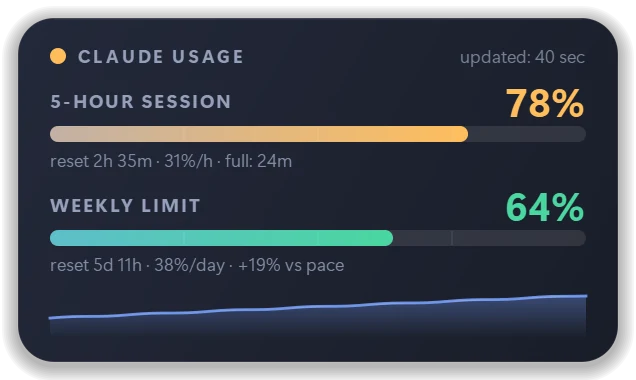
Green, yellow, red. The panel changes colour long before you run out – with a countdown to the reset and an estimate of when you'd hit 100%.

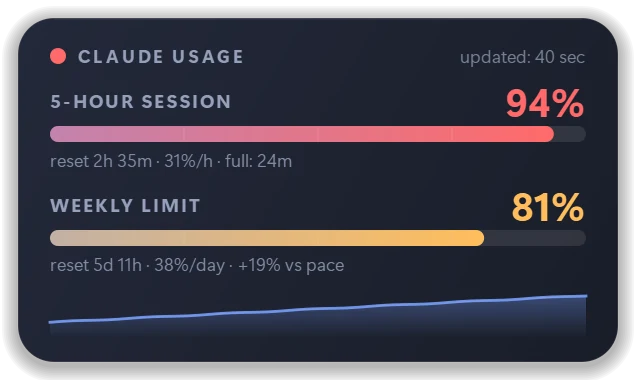
Claude usage at 78% – the widget turns yellowClaude usage at 94% – the widget turns red

Are you burning too fast?

The pace indicator tells you if your weekly limit is melting faster than the week passes – and projects where you'll end up.

All your devices, one number

Sign in through your own browser – like Claude Code does – and see usage from your phone, browser and every other computer too.

Per-model limits

Fable, Opus, Sonnet, Claude Code, usage credits, saved limit resets – every limit the server reports, plus this week's split between models and, on request, between products (Claude Code, chats, Cowork) across all your devices.

Alerts that matter

A quiet notification at 70% and 90% (you choose), when your limit resets, and when a saved limit reset is about to expire unused. Nothing else, ever.

The whole week on one chart

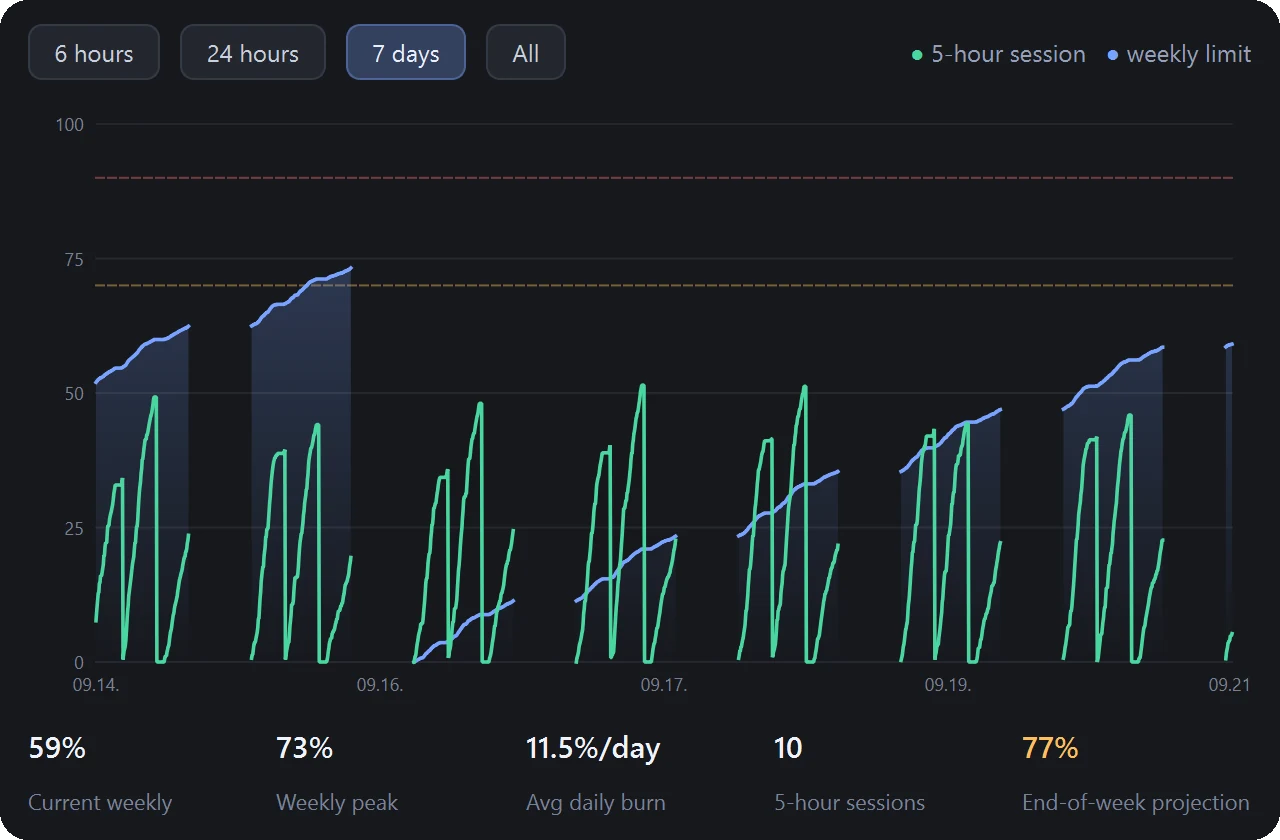
Double-click the widget: both limits on one timeline – 6 hours, 24 hours or 7 days – with your weekly peak, daily average and an end-of-week projection that changes colour before you overshoot.

Claude Usage Monitor history window: 5-hour session and weekly limit over time, with weekly peak, daily burn and end-of-week projection

It doesn't spy. Period.

No telemetry, no analytics, no account with us. It talks only to Anthropic, only for your own numbers. Your sign-in token stays encrypted on your computer – Windows DPAPI or the macOS Keychain.

Yes, it's really free.

No trial clock. No “Pro” upsell. No catch. Download it and it's yours.

Only if you're curious

The details – when you want them.

  • 5-hour session – current %, countdown to reset, burn rate (%/hour) and when it would fill up.
  • Weekly limit – current %, time to the weekly reset, daily rate and your pace vs. an even week.
  • Per-model weekly limit – a third gauge for the model you watch (Fable by default).
  • Plan badge – PRO, MAX 5×, MAX 20×, TEAM or ENTERPRISE.
  • History window – 6 h / 24 h / 7 days charts, weekly peak, daily average and an end-of-week projection.
  • Tray / menu-bar icon – your chosen percentage as a ring, details on hover.

Make it yours

6 themes. 3 layouts. Try them right here.

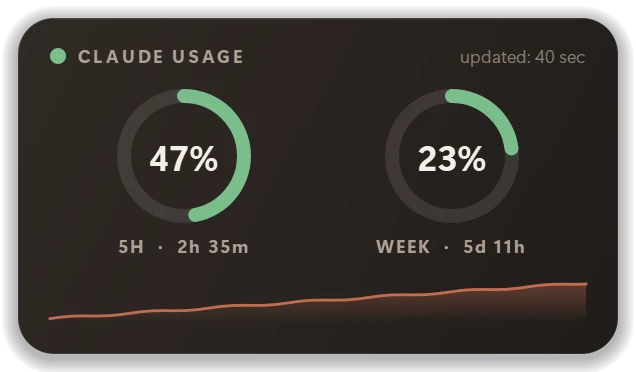
Claude Usage Monitor in the selected theme and layout

Theme

Deep blue glass with a cool glow. The default – calm, readable, at home on any dark desktop.

Layout

Plus your own accent colour, size from 70% to 200%, and opacity.

Pricing

0Ft · € · $

Free. The whole thing. Forever.

  • Full version – there is no other
  • No demo, no trial, no time limit
  • No “Pro” tier, no locked features
  • No ads, no registration, no data collection
  • Free updates, automatically

Download

Always the latest version. Always free.

Windows

Windows 10 / 11 · 64-bit

FREE
Get it from Microsoft Store
  • Signed and checked by Microsoft
  • Installs without a security warning
  • Updates automatically

In the Store it is listed as “Usage Monitor for Claude AI”.

Prefer a portable ZIP without the Store? Download the ZIP · 2.9.7 · 47 MB – not code-signed, so Windows may show a warning

Installing the ZIP (3 steps)
  1. Extract the whole zip (right-click → Extract All…).
  2. Double-click INSTALL.bat.
  3. Answer two questions – Enter accepts the recommended answer. Done.

No admin rights needed. If Windows shows “Windows protected your PC”: More info → Run anyway. The app is open source but not code-signed.

Verify the download (SHA-256)2c4c94923fdaadfafdc9f66abb4f6e3da264d9077e43e3fc915c7ad87ef30f4d

PowerShell: Get-FileHash .\ClaudeUsageMonitor-Setup-*.zip

macOS

macOS 13 or newer

FREE
Get it from the Mac App Store
  • Checked and signed by Apple
  • Installs with one click, no warnings
  • Updates through the App Store

In the Store it is listed as “Usage Monitor for Claude AI”. Version 2.9.1 · 1 MB

Prefer a portable ZIP without the Store? Download the ZIP · 2.6.1 · 29 MB

The direct ZIP download for macOS is paused – the App Store version is the one to install.

How to install (3 steps)
  1. Open Usage Monitor for Claude AI in the Mac App Store.
  2. Click Get, then Open (sign in with your Apple ID if the Store asks).
  3. Look for the icon in the menu bar. Done.
Code signing policy

Windows releases are built by a public GitHub Actions workflow from the project's source repository and submitted for signing from that build. Free code signing provided by SignPath.io, certificate by SignPath Foundation.

Team: Vidovics Gábor – author, reviewer and approver of every signing request. The program sends data only to Anthropic's servers (your own usage figures) and to claudeusagemonitor.com (update check; the message form only when you send it). Details in the Privacy Policy.

Status: application to SignPath Foundation pending. Until it is approved, releases are signed with the author's own certificate, or unsigned.

By downloading you accept the Terms of use: the app and the Backup Kit are free and provided “as is”, without warranty, at your own risk.

These buttons always point to the newest release – and once installed, the app keeps itself up to date.

Actively developed

What's new in 2.9.7

Earlier versions

CHANGELOG.md

Recommended for

If any of these is you, you'll like it.

Claude Code developersLong agent runs burn through the 5-hour session fast. See it before it stops you mid-task.
Pro & Max subscribersGet the most out of what you pay for – without hitting the wall on Thursday.
People on many devicesPhone, browser, laptop, desktop: one honest number for all of them.
Anyone who likes a tidy desktopA small, good-looking panel that stays out of the way – or shrinks to a slim bar.

What users say

5.0 / 5 · ratings sent from inside the app: 6

★★★★★
★★★★★

“Hi Vidovics A very handy tool. kudos to you. Before this, it was like driving a car without a fuel gauge ;)”

Nick BOyd

Only messages that the sender agreed to publish and the author has read appear here. Using the app? Right-click the panel → Message to the developer… – rate it and tell me what you think.

“I built this for myself, because I kept running into the limit in the middle of my work. Then I polished it until I was happy to look at it all day. It's free because a tool like this should be – use it, enjoy it, and tell me what you think.”
Vidovics Gáborcreator & developer of Claude Usage Monitor · Hungary

FAQ

Questions about Claude usage limits – short answers.

Is it really free? What's the catch?

Really free, and there is no catch. It's not a demo, not a trial and not a cut-down edition – this is the full and only version. No ads, no paid tier, no data collection. The source code is public under the MIT licence.

How do I check my Claude usage without opening Settings?

Install Claude Usage Monitor: it keeps your five-hour session, weekly limit and per-model limit on screen all the time, as a small always-on-top widget and as a percentage in the tray or menu bar. Claude's own numbers live under Settings → Usage; the widget shows the same limits without any clicking.

When do the Claude 5-hour session and the weekly limit reset?

The session-based limit resets every five hours. The weekly limit resets at a fixed time each week that Anthropic assigns to your account, so it differs from person to person. The widget shows a live countdown to both resets – with claude.ai sign-in it uses the exact times from Anthropic's server.

Does Claude Code usage count toward my claude.ai limit?

Yes. According to Anthropic, usage on claude.ai, Claude Desktop and Claude Code counts toward the same usage limit. That is why the widget's claude.ai mode shows one number for all your devices and apps, not only for the computer it runs on.

Is this the same as “Claude Code Usage Monitor”?

No. “Claude Code Usage Monitor” is a separate, terminal-based tool by another author. Claude Usage Monitor by Vidovics Gábor is a graphical desktop widget for Windows and macOS with a tray icon, themes and alerts, and it needs no command line.

How can I rate Claude Usage Monitor or send feedback?

Right-click the panel and choose “Message to the developer…”, or click the message icon in the panel header. You can give one to five stars, write a message, and – only if you tick it – allow your rating and name to be shown on this website. Every message is read by the author, Vidovics Gábor, and nothing is published without your consent. Without the app, use the form at the bottom of this page.

Which languages is Claude Usage Monitor available in?

In 34 languages: every official language of the European Union plus Japanese, Korean, Simplified and Traditional Chinese, Indonesian and Vietnamese – with separate versions for European and Brazilian Portuguese and for Spain and Latin-American Spanish. The app picks your system language by itself, and this website exists in each of these languages too.

Does it work with Claude Pro, Max, Team and Enterprise?

Yes. It shows the limits your own Claude plan has – Pro, Max 5×, Max 20×, Team or Enterprise – the same ones Claude lists under Settings → Usage, and the plan badge in the panel header tells you which plan you are on.

Can Claude Usage Monitor show whether my Claude files are backed up?

Yes – and it is free as well. With the backup status bar switched on, three lamps on the panel show whether the backup to OneDrive, to a second cloud such as Nextcloud and of your Obsidian vault is fresh: green up to 24 hours, yellow up to 48, red when it is older or missing, and a red ring when the latest run failed. The monitor only reads the backup logs; the backup itself is made by the free Claude Backup Kit, which copies your Claude Code skills, CLAUDE.md, project memory, Claude Desktop settings and agent logs every day – never the sign-in token. The kit is a free starting point that anyone can change, so we accept no liability for backups: making sure they are complete and can be restored is up to each user.

Is this an official Anthropic product?

No. It's an independent community tool made by Vidovics Gábor. It is not affiliated with Anthropic. “Claude” is a trademark of Anthropic, PBC.

Do I have to give it my password?

Never. Without signing in it reads Claude Desktop's local log. If you want all devices, you sign in on claude.ai in your own browser – the app never sees your password.

Windows warns me when I run it. Why?

Because the app isn't code-signed (certificates cost money; the app is free). Click More info → Run anyway. You can verify the download with its SHA-256 checksum, and read the source on GitHub.

This applies only to the ZIP from this website. The Microsoft Store version is signed by Microsoft and installs without this warning – the easiest way.

Which Macs are supported?

macOS 13 or newer. The Mac version comes from the Mac App Store as “Usage Monitor for Claude AI” – signed by Apple and updated by the App Store. The macOS version is new – feedback is very welcome.

How do updates work?

The app checks this site a few times a day. When there's a new version it tells you; one click downloads, verifies and installs it, then restarts. You can switch this off.

How do I remove it?

Windows: Settings → Apps → Installed apps → Claude Usage Monitor → Uninstall. macOS: drag the app to the Bin. That's all.
Talk to the author

Idea? Bug? Just like it? Tell me.

Your message goes straight to me, Vidovics Gábor. I read every one. Leave an e-mail address only if you'd like a reply.

Your message is used only to answer you and to improve the app – details in the Privacy Policy.

Two minutes from now, you'll know exactly where you stand.

Free. Forever. Not a demo. Not a trial. Nothing locked.

…